SketchPad – Doodle & Draw
Kaffeine SoftwareArt & Design
4.5615.00 Reviews
- Version
- 3.0.2
- Installs
- 1.00M
- Age Rating
- Everyone
Screenshots
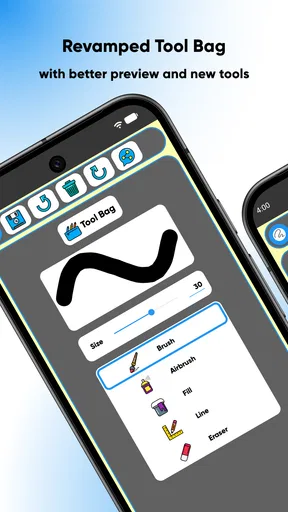
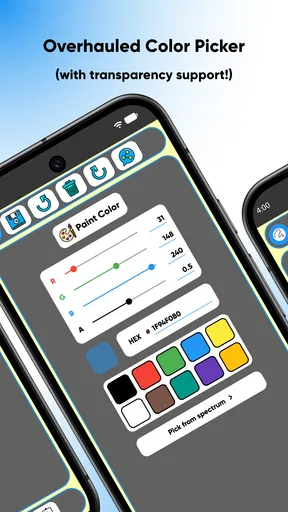
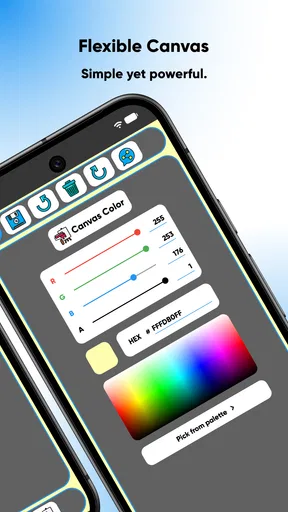
Our Review of SketchPad – Doodle & Draw
 Analysis by Appyee
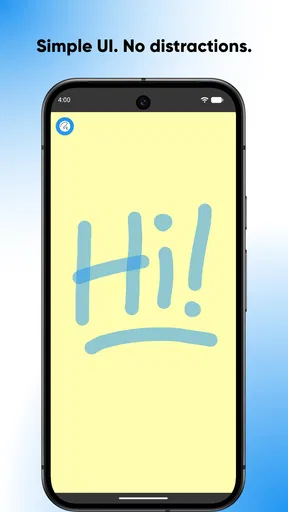
I opened SketchPad expecting a simple place to doodle, and that is exactly where this app makes the best impression. It is a free art and design app from Kaffeine Software, aimed at quick drawing rather than professional illustration. The experience feels suited to the moments when an idea arrives suddenly: a rough character, a note with visual emphasis, a pattern, or a few minutes of relaxed scribbling. Its store summary captures that casual rhythm well, but my experience is that its real appeal comes from removing ceremony. You can start drawing without first building a complicated project.
The app has a 4.5 average from around 4.9 thousand ratings, with more than a million installs. Those figures suggest that its straightforward approach has found a broad audience, but they do not make it the right tool for everyone. I would recommend it most readily to beginners, children, casual sketchers, and anyone who wants an uncomplicated digital canvas on an Android device. I would be more cautious with professional artists who need advanced layer management, precise vector editing, or a full desktop-style workflow.
How the free experience feels in everyday use
I judge the free experience by how naturally it fits into small moments, not by whether it can stand in for a full art studio. For me, its best use is to catch an idea before it fades, then decide whether it deserves more time elsewhere. That everyday role also makes it worth looking at what the app’s current version tells us—and what it doesn’t.
A low-friction canvas for quick ideas
The strongest part of SketchPad is the short distance between opening the app and putting something on screen. That matters more than it sounds. Many art applications make a first-time user choose a canvas size, color profile, brush family, document type, and project location before the creative part begins. A lightweight sketching app is useful precisely because it avoids turning a five-minute idea into a setup task.
I can imagine using it while waiting for an appointment to rough out a logo shape, drawing a visual reminder for a shopping list, or testing how a handwritten title might look before recreating it elsewhere. It also works as a pressure-free practice space. Since the app is positioned around doodling and drawing, I do not feel that every mark has to become a finished illustration.
That simplicity is particularly helpful for younger users. The Everyone content rating makes the app approachable for a family tablet or a child who wants to experiment with lines and colors. I would still guide a child through the device’s general settings and storage habits, but the creative purpose itself is easy to understand. There is no need to know illustration terminology before beginning.
Where the free price matters
The basic attraction is clear: the app is free to download and use as an entry point into digital drawing. That changes the decision considerably. You do not have to commit money before discovering whether drawing on a phone or tablet feels comfortable. For someone who is only curious about digital sketching, this is a sensible first step.
There are in-app purchases priced from $0.99 to $2.99 per item. I treat that as optional spending rather than part of the free promise. The important distinction is that the app can be tried without paying, while extra purchases may be relevant if you want more from the experience. I would not buy anything immediately. I would first spend several sessions testing whether the basic drawing workflow fits the way I actually sketch.
That approach also protects against a common mistake: assuming that a low-cost art app should replace a full professional suite. The free access delivers value through convenience and experimentation, not necessarily through the depth of a paid creative workstation. If your aim is to learn advanced digital painting, prepare print-ready artwork, or manage complex commissioned projects, the money you save here may not compensate for the tools you eventually need elsewhere.
What the app is good at without becoming complicated
SketchPad works best when the desired result is immediate and informal. I would use it for thumbnails, visual brainstorming, handwriting practice, simple diagrams, decorative doodles, and early composition ideas. A useful workflow is to make several deliberately rough versions instead of trying to perfect the first one. The app’s casual identity encourages that kind of iteration, and the low stakes make it easier to compare ideas honestly.
One practical tip is to separate thinking from polishing. I would use the first pass to establish the shape and placement of an idea, then decide whether it deserves refinement in a more advanced application. This prevents a small concept from consuming too much time. SketchPad becomes the place where I decide what is worth developing, rather than the place where every project must be completed.
It is also useful for people who prefer visual notes. A quick drawing can explain the arrangement of furniture, the shape of a garden bed, or the layout of a presentation more clearly than a paragraph. Because the app is centered on drawing rather than document production, I would keep those notes intentionally simple: arrows, boxes, labels, and recognizable shapes are enough.
Three habits that make casual drawing more productive
First, I would begin with a small visual goal instead of an empty promise to “make something.” Draw one object, test one lettering style, or create three variations of a single symbol. An empty canvas can feel demanding, while a narrow prompt gives the session direction. This is especially useful for beginners who mistake a rough first attempt for a lack of artistic ability.
Second, I would use the app as a thumbnail laboratory. Before spending time on a detailed illustration, I would sketch several arrangements with quick strokes. The point is not beauty; it is deciding where the subject sits, where the eye travels, and whether the composition feels balanced. This is a professional habit that works surprisingly well in a simple drawing environment.
Third, I would deliberately keep some drawings unfinished. A half-developed idea can be more useful than a polished but uninteresting image because it leaves room for comparison and revision. SketchPad’s casual character supports this better than an app that constantly pushes the user toward a formal final document.
How it compares with familiar alternatives
Compared with paper, SketchPad is more convenient when I want to try several variations without using extra materials. It is also less permanent psychologically: a digital sketch feels easier to abandon and restart. Paper still wins for tactile feedback, effortless page size, and the natural variation of a physical pen or pencil. If the sensation of drawing is the main reason you create, a screen may not satisfy you in the same way.
Compared with full-featured illustration apps, SketchPad’s advantage is approachability. A larger creative suite may offer more control over layers, brushes, precision, export, and editing, but those options can slow down a quick idea. SketchPad is the better fit when speed and familiarity matter more than technical control. The tradeoff is that a serious project may outgrow it sooner.
Compared with a generic note-taking app, it puts drawing at the center instead of treating it as a secondary attachment. That makes the experience more natural for visual thinking. On the other hand, a note-taking app may be better when the drawing needs to sit beside searchable text, checklists, or organized pages. I would choose SketchPad for the mark-making itself, not for managing a large knowledge system.
The limitations I noticed in the concept
The same simplicity that makes the app welcoming can become restrictive. Casual drawing does not automatically provide the control needed for precise alignment, complex revisions, or a carefully organized multi-stage project. If I were producing artwork for a client, I would want a workflow whose editing and file-management capabilities were designed around that responsibility rather than around quick doodling.
Phone screens create another practical limitation. Finger drawing can feel imprecise, especially for small details, and even a stylus cannot fully remove the constraints of a compact display. A tablet is likely to feel more comfortable for longer sessions, while a phone is better for short ideas. I would not judge the app harshly for this; it is a limitation of the mobile format, but it affects whether the experience feels relaxing or frustrating.
There is also a difference between making an image and managing an art practice. SketchPad is appealing as a place to draw, but people who need a structured archive, advanced project organization, or detailed production controls should compare it with more specialized tools before settling in. The free starting point is valuable, yet it should not be confused with a complete replacement for every application in the art category.
Who will get the most from it
I think SketchPad is especially suitable for a beginner who wants to learn by making marks rather than watching tutorials first. The app lowers the emotional barrier to experimentation. It is also a good match for casual artists who draw in short bursts, parents looking for a simple creative activity for a child, and students who need rough visual planning without building a formal presentation.
It can be useful for designers during the earliest stage of an idea, provided they understand that the rough concept may need to move into another tool later. I would also recommend it to someone who has repeatedly downloaded advanced art software and then stopped using it because the interface felt overwhelming. A modest tool that gets opened regularly can be more valuable than a powerful one that remains intimidating.
I would ask a different user to skip it or treat it only as a secondary sketchbook. Professional illustrators, lettering artists who need exact control, animators, technical artists, and anyone preparing complex deliverables will probably benefit more from a specialized application. The same is true for users who primarily want photo editing, page layout, or text-heavy note organization. SketchPad’s value depends on wanting to draw, not merely wanting an app with a creative label.
Practical questions before installing
Is it suitable for a child? Its Everyone age rating makes it broadly appropriate for all ages, and its drawing-focused purpose is easy for a young user to understand. I would still consider the child’s device access and supervision needs separately, because an age rating does not replace normal family settings. For a shared tablet, I would establish a simple routine for saving or clearing old sketches so the drawing space stays manageable.
Can it replace professional art software? In my view, no—not as a general rule. It is better understood as a fast sketching companion. Use it to explore a composition, practice, or capture an idea, then move to a more advanced tool when the project demands deeper control. That division of labor is not a weakness if you value speed; it becomes a problem only when you expect one small app to handle every stage.
Should you pay for the optional items? I would wait. Since the app is free to start and individual purchases range from $0.99 to $2.99, I would first identify a specific limitation in my own workflow. If an optional item directly improves the kind of drawing I do repeatedly, a small purchase may be reasonable. Buying extras simply because they are inexpensive is less convincing, especially when the app’s main benefit is already available without an upfront charge.
Will it work for short daily practice? That is one of its most convincing use cases. I would set a tiny exercise, such as drawing the same object from three angles or filling a page with different line rhythms. The goal is consistency, not a finished masterpiece. A simple app can be excellent for building the habit because it gives fewer excuses to postpone the first stroke.
Support, maturity, and what to expect
The app was released on January 21, 2018, and its current version is 3.0.2. It requires Android 5.0 or later, so compatibility should be comfortable for many older Android devices as well as newer ones. I see that broad device reach as part of the practical appeal: a sketching tool is most useful when it is available on the phone or tablet you already carry.
At the same time, I would keep expectations realistic about long-term creative needs. A mature, lightweight app can be dependable for its central purpose without offering the evolving depth of a major professional platform. If your requirements are changing quickly, test your intended workflow early: make a few sketches, revisit them, and decide whether the app supports the way you want to work rather than merely the way you want to begin.
My verdict on the free value
After using it as a casual drawing space, I see SketchPad as a sensible recommendation for people who want an uncomplicated start. Its free access makes experimentation easy, and its focus is narrow enough to remain approachable. The best value is not that it promises to turn a phone into a complete studio; it is that it makes drawing available when a full studio would feel like too much effort.
The tradeoff is equally clear. You give up the depth and precision associated with more advanced art software in exchange for a quicker, friendlier entry point. For doodles, visual notes, practice, and early concepts, that is a fair exchange. For production artwork, highly controlled editing, or a demanding professional archive, I would choose a different tool and perhaps keep this one as a rough-sketch companion.
My buy-or-skip advice is simple: start free, draw for several real sessions, and only consider an optional purchase when you know exactly what value you need. I would recommend it to a friend who wants to doodle, learn, or capture visual ideas without fighting a complicated interface. I would skip it as a primary studio application, but not as an accessible mobile sketchbook. For the right user, that modest role is precisely what makes it worthwhile.
Privacy and Permissions
See what permissions an app requests and how it handles your data.
- Photos/Media/Files
- read the contents of your USB storage, modify or delete the contents of your USB storage
- Storage
- read the contents of your USB storage, modify or delete the contents of your USB storage
- Wi-Fi connection information
- view Wi-Fi connections
- Other
- view network connections, full network access, control vibration, prevent device from sleeping
Verdict
Strengths of SketchPad – Doodle & Draw
- Simple interface makes it easy to start drawing immediately.
- Useful selection of brush sizes, colors, and opacity controls.
- Supports quick sketches, notes, and casual creative projects.
- Responsive touch controls provide a natural drawing experience.
- Lightweight design runs smoothly on most modern devices.
Limitations of SketchPad – Doodle & Draw
- Advanced artists may find the layer and editing tools limited.
- Some features or brushes may require in-app purchases.
- Small screens can make detailed drawing difficult without a stylus.
- Export options may not offer enough formats for professional workflows.
- Accidental touches can affect drawings when using larger canvases.
Similar Picks in This Category
View All
Canva: AI Photo & Video Editor
Canva4.8

PENUP – Drawing-sharing SNS
Samsung Electronics Co., Ltd.4.5

Crafto
Kutumb App4.6

Sketchbook
Sketchbook4.1

ibis Paint X
ibis inc.4.5

Adobe Express: AI Photo, Video
Adobe4.6
Frequently Asked Questions
What is SketchPad – Doodle & Draw, and who is it designed for?
SketchPad – Doodle & Draw is a digital drawing and doodling app intended for casual artists, students, children, and anyone who enjoys creating quick sketches on a phone or tablet. It provides a simple canvas-focused experience for drawing, practicing ideas, making notes, or relaxing creatively. It is easier to approach than professional illustration software, although experienced users may still appreciate it for fast, uncomplicated sketches.
Does SketchPad – Doodle & Draw require an internet connection?
The basic drawing experience can generally be used without a constant internet connection, which makes the app convenient for sketching while traveling or when mobile data is unavailable. However, internet access may be needed for downloading the application, receiving updates, viewing advertisements, restoring purchases, or accessing certain online-related features. Users should also check the app’s current store description because offline availability and optional tools can change between versions.
What drawing tools and features are available in the app?
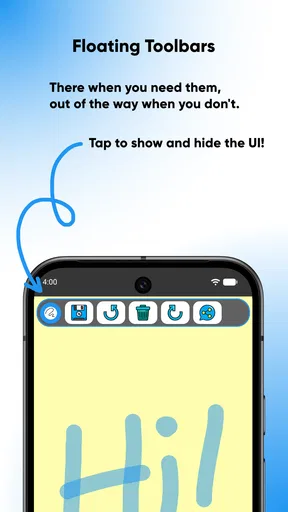
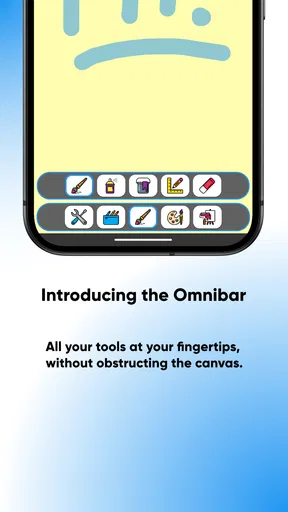
SketchPad – Doodle & Draw focuses on accessible tools rather than an overwhelming professional interface. Depending on the version and device, users can typically expect a blank canvas, different brush or pencil styles, color selection, erasing, and options for clearing or saving their work. It is suitable for doodles, simple illustrations, handwriting practice, and quick concepts, but users seeking advanced layers, vector editing, or studio-grade brushes may find it limited.
Can drawings made in SketchPad – Doodle & Draw be saved or shared?
The app is designed to let users keep their creations and share them outside the application, although the exact export formats and sharing options may depend on the operating system and installed version. Before creating an important illustration, it is sensible to test the save function and confirm where files are stored. Users should also grant only the media or storage permissions needed for saving and sharing their artwork.
Is SketchPad – Doodle & Draw free to download, and are there advertisements or purchases?
SketchPad – Doodle & Draw may be available as a free download, but free access does not necessarily mean that every feature is included without restrictions. Depending on the release, the app may display advertisements or offer optional in-app purchases for removing ads, unlocking tools, or improving the drawing experience. Check the Google Play Store or Apple App Store listing for the current pricing, subscription details, permissions, and refund conditions before downloading.
